After Effects & Depthkit Core
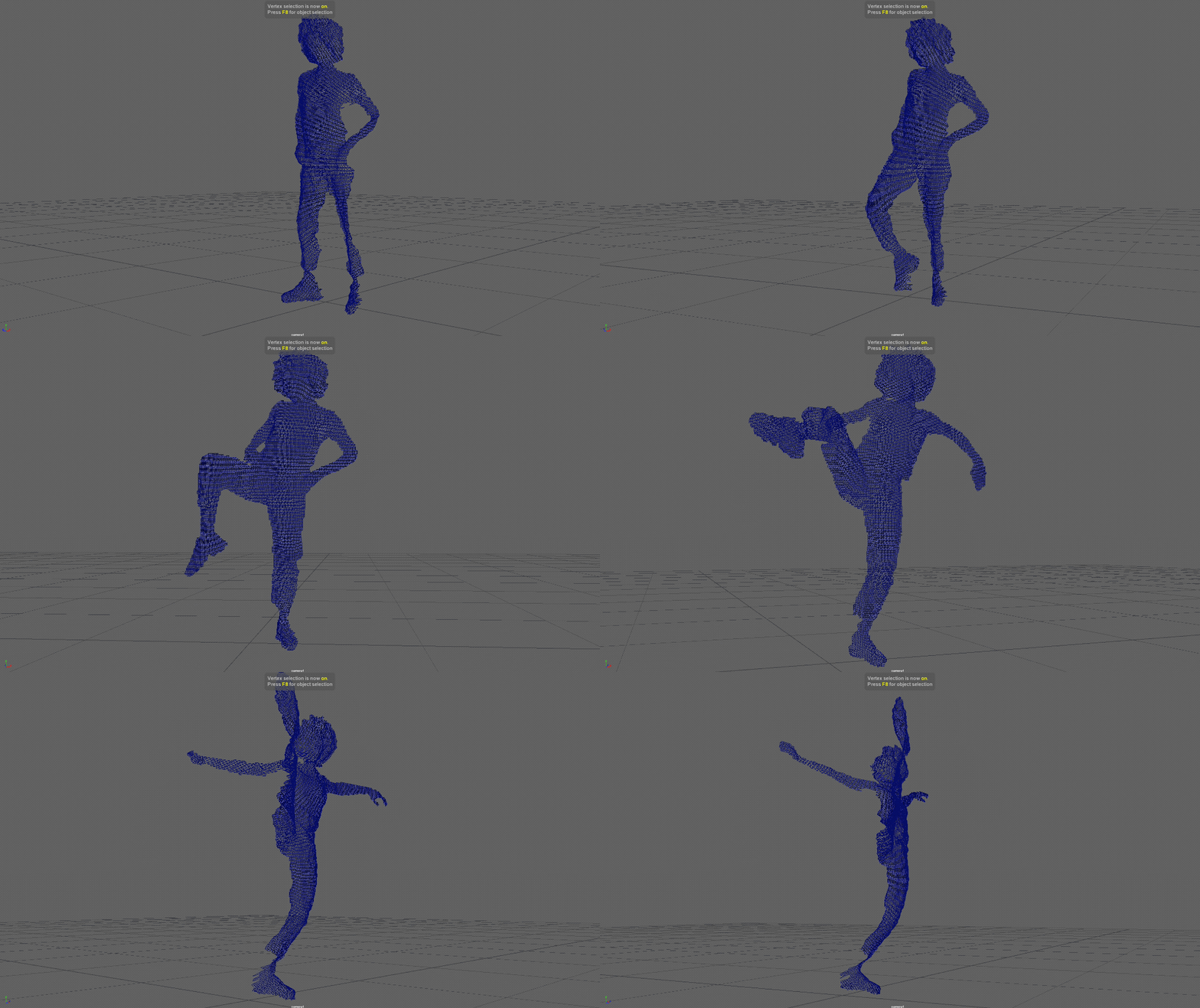
Importing OBJ sequences may require an external plugin depending on which digital content creation tool that you are using. See below for several recommendations for obj sequence friendly plugins and workflows.
Looking for a tutorial for a specific plugin? Reach out to support@depthkit.tv and let us know what tools you use for volumetric visual effects.
Depthkit for After Effects
After Effects has a range of plugins used to import geometry sequences into a 2.5D environment.
Element 3D
Element 3D is a great and simple way to work with geometry sequences in After Effects.
See installation instructions for Element 3D.
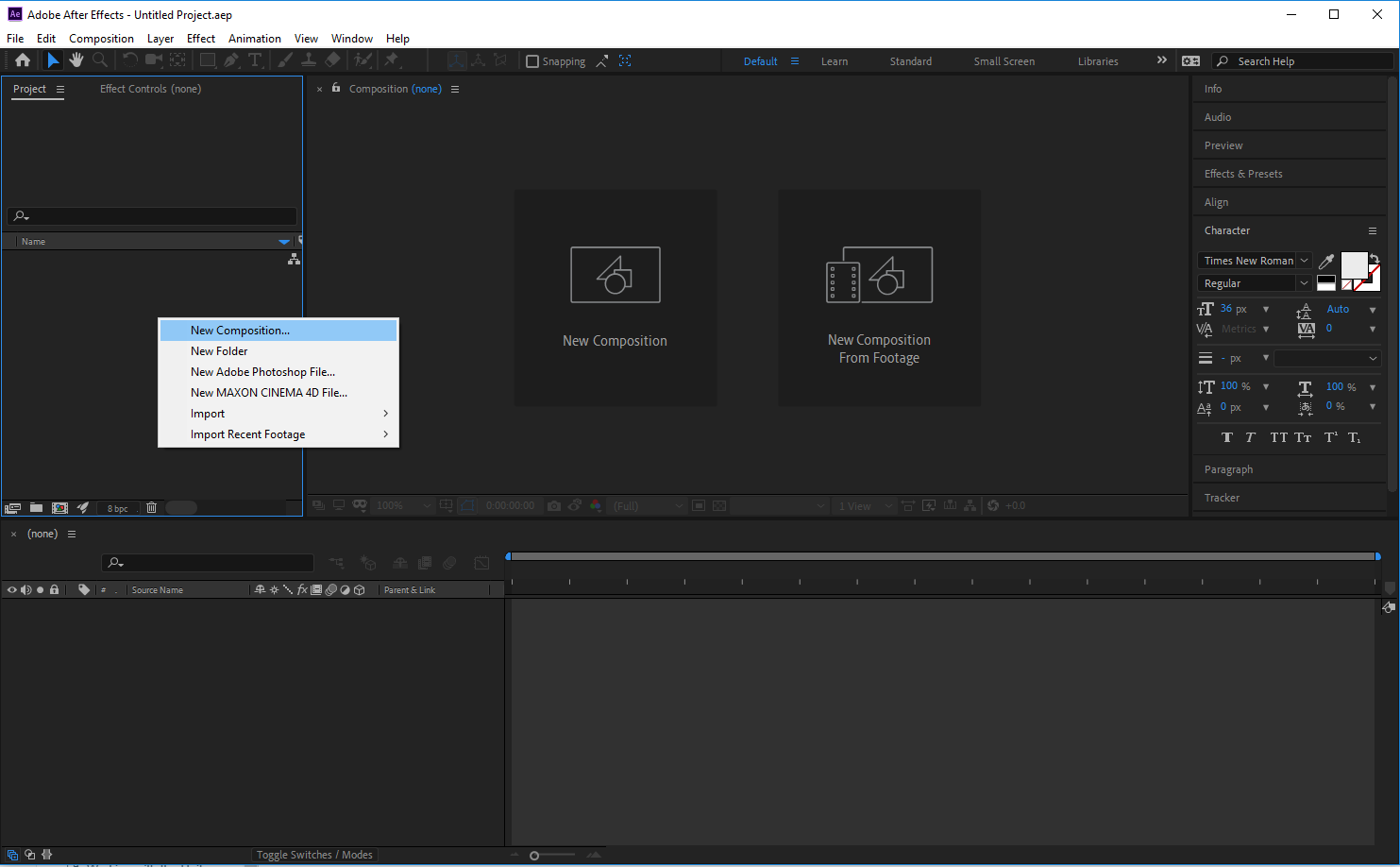
Setting Up\ Create a new composition in your After Effects project. You can use the default composition settings.
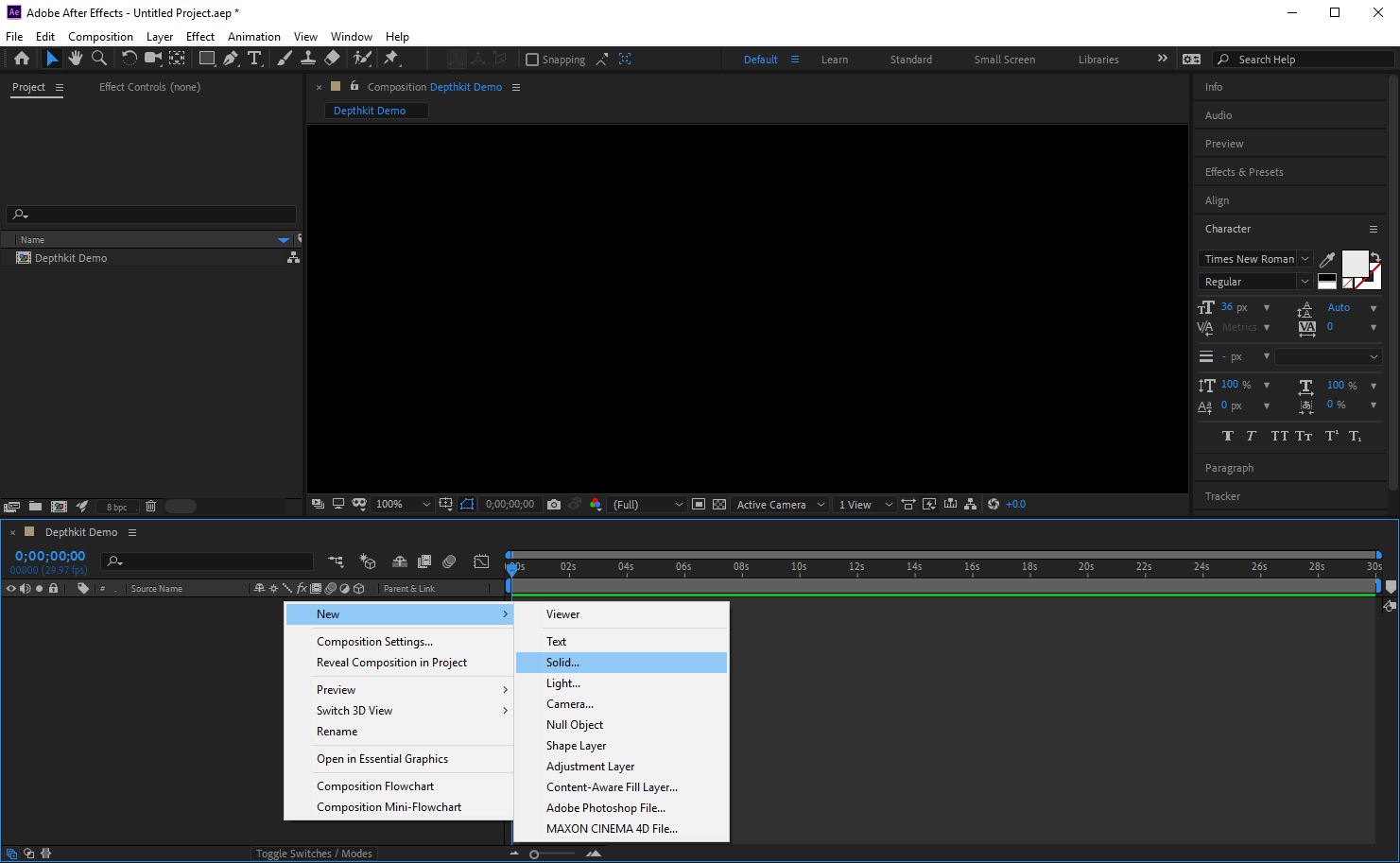
In your new composition, create a solid layer.
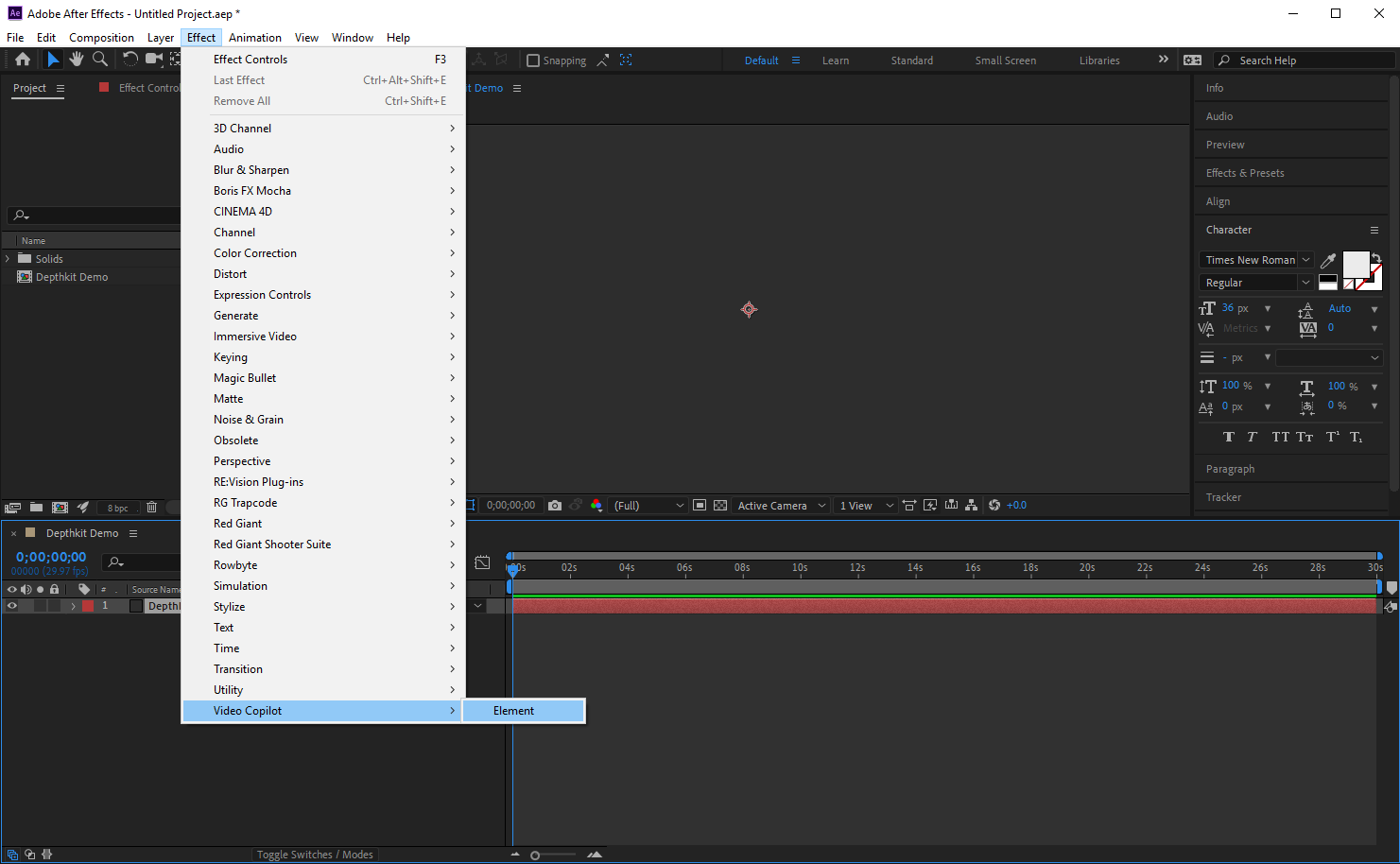
With the layer selected, go to the Effect menu and select Video Copilot, Element.
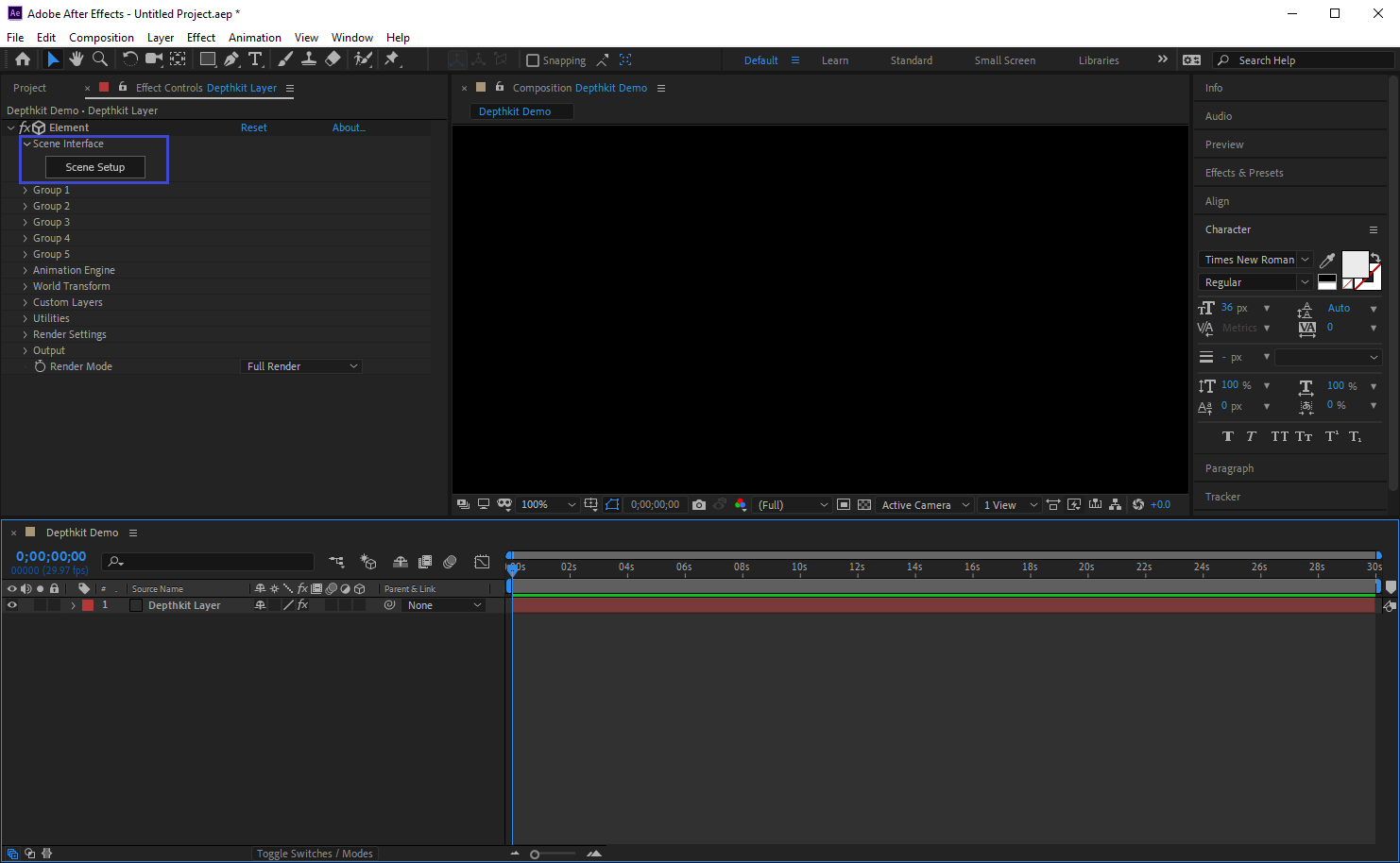
In the Effect Controls panel under Scene Interface, select the Scene Setup.
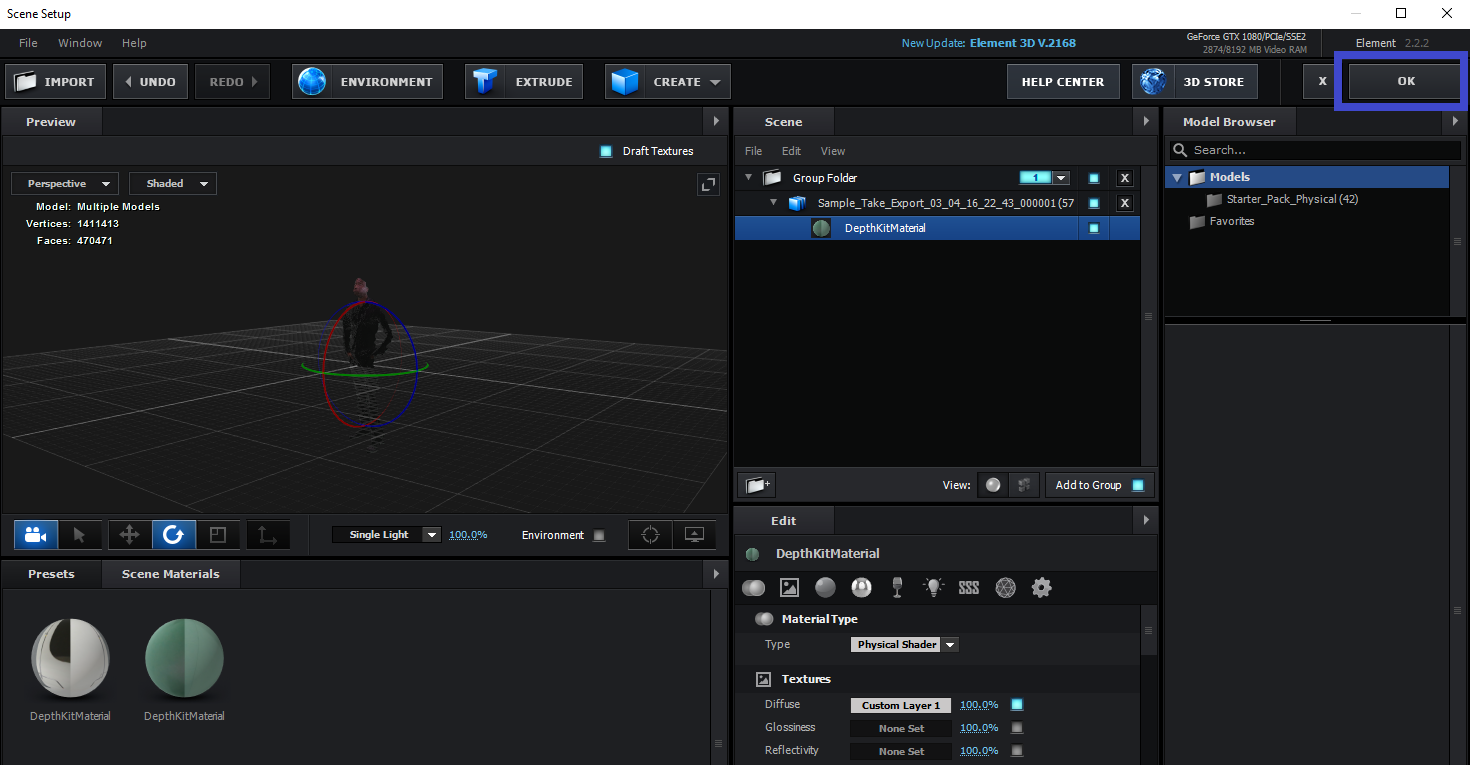
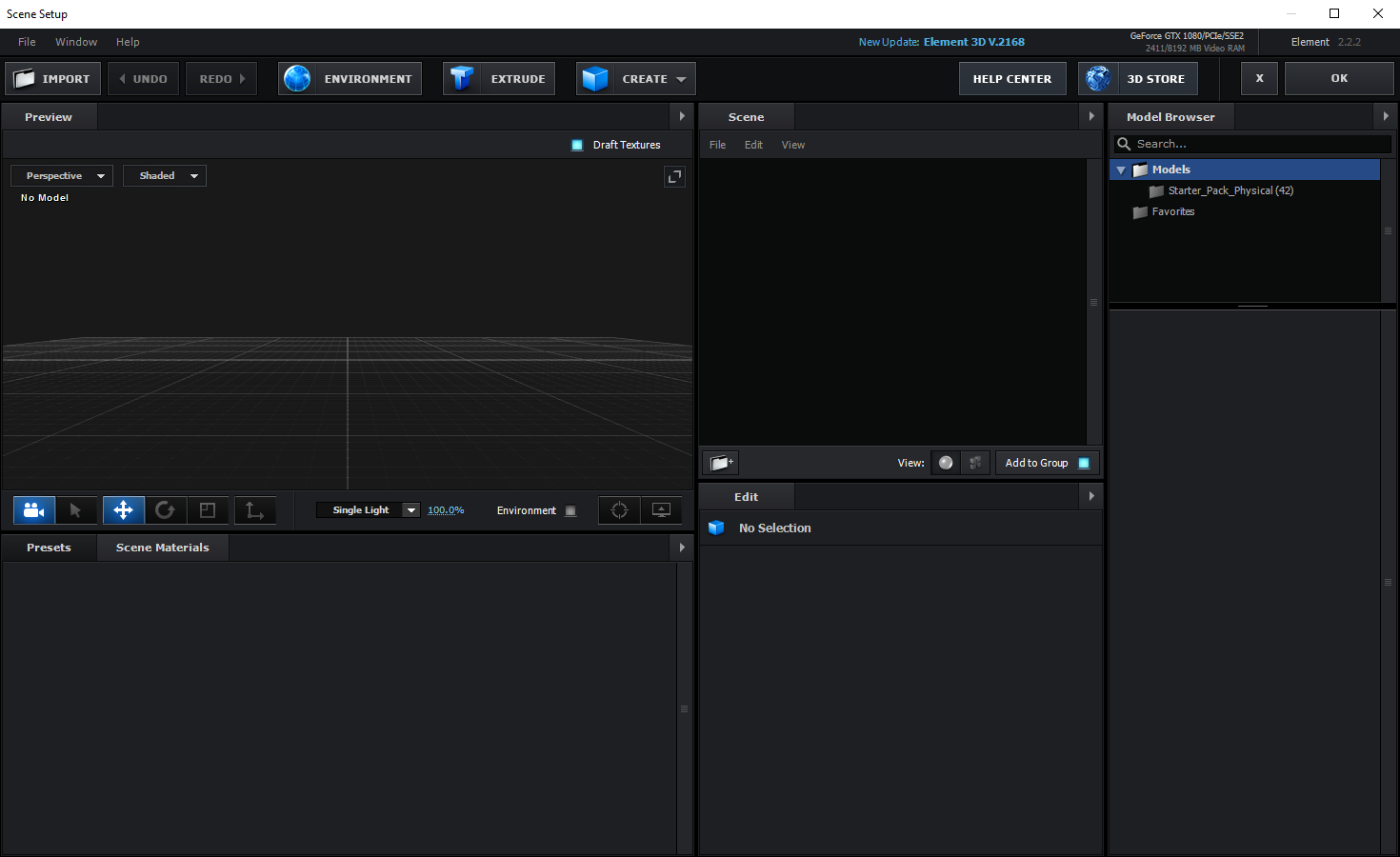
This will take you to the Element 3D view and interface.
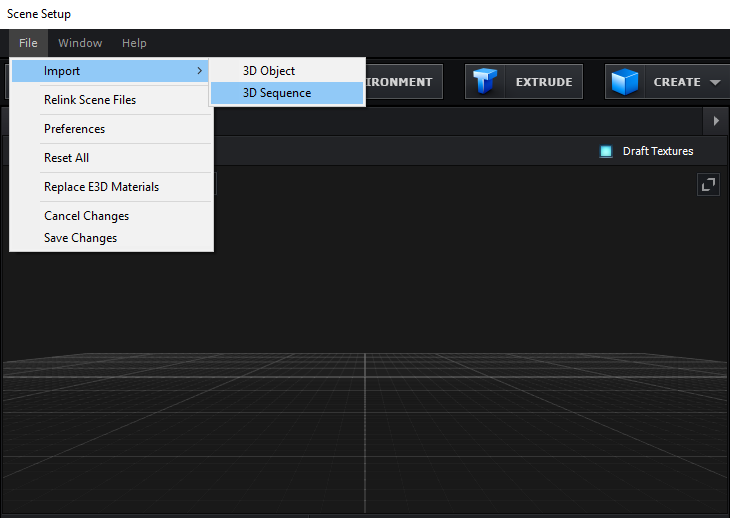
To import your Depthkit OBJ sequence, go to the File menu and select Import, 3D Sequence.
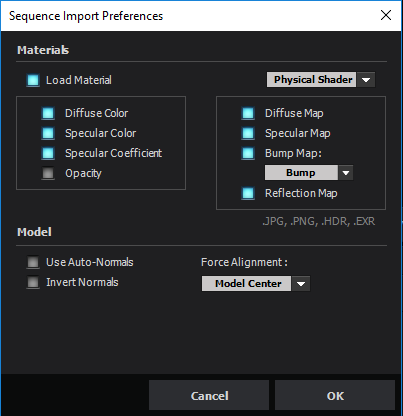
Once you have selected the OBJ sequence to import, sequence import preferences will be available. Select Load Material.
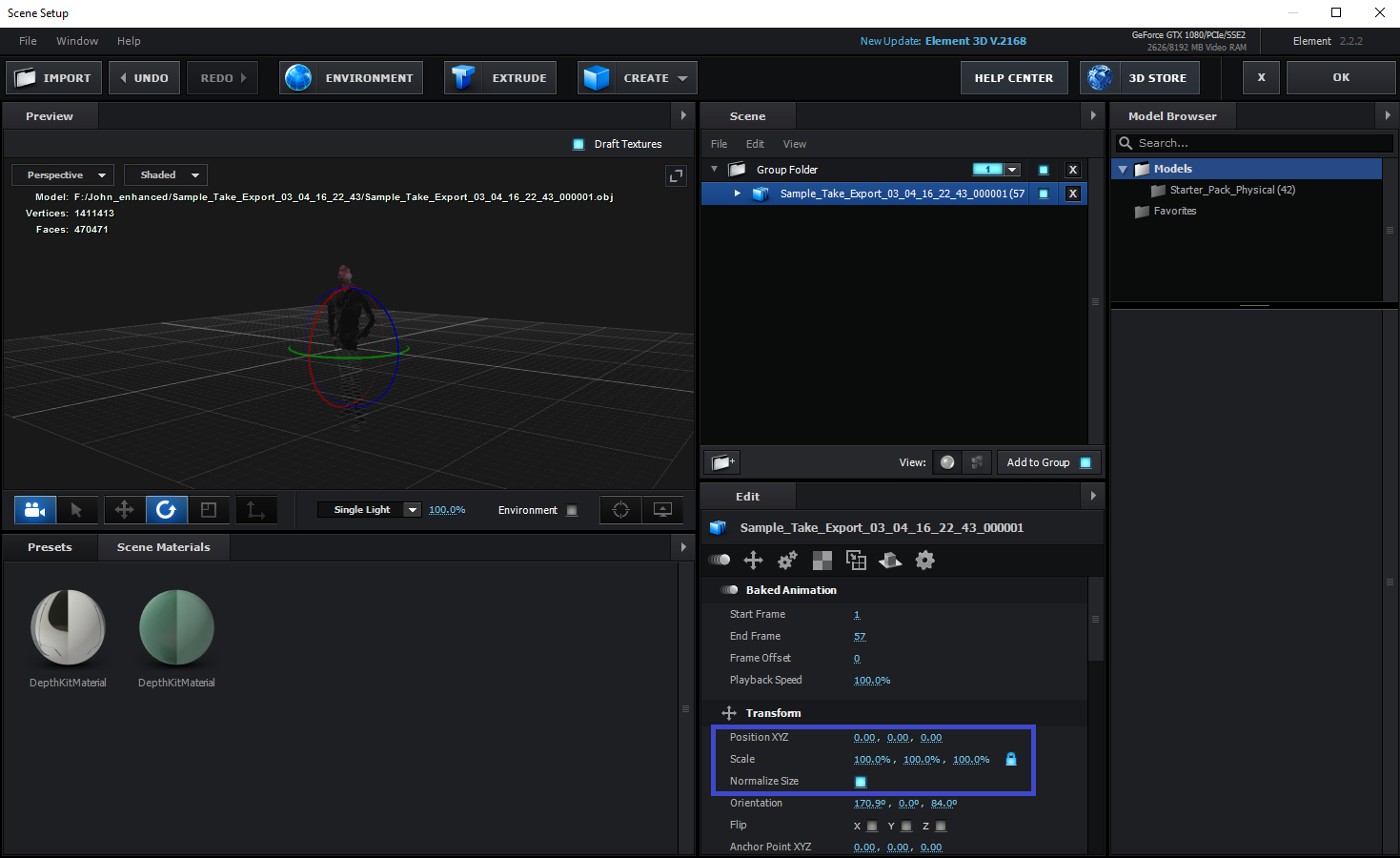
If you don't see your sequence right away, don't worry, it is most likely due to scaling. Under Transform, select Normalize Size.
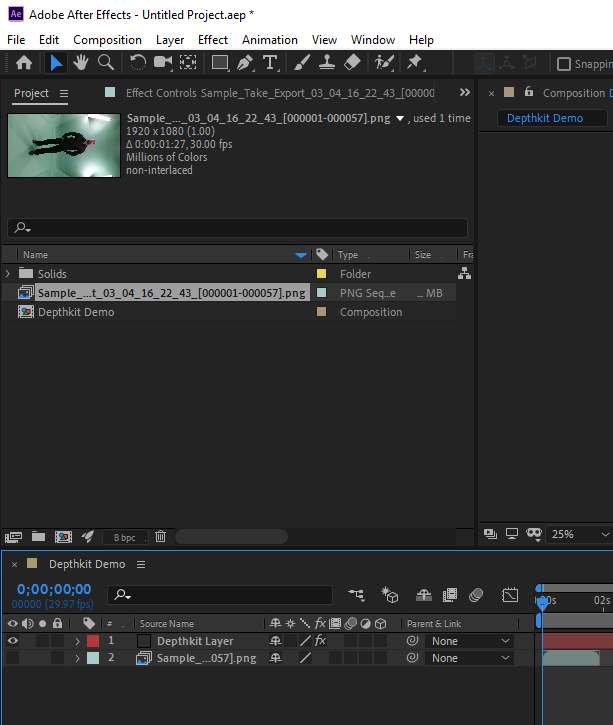
Note that this will not automatically assign the corresponding texture sequence. To apply the texture sequence, go back to the Project panel to import your png sequence. Drag this sequence into your composition and hide the layer.
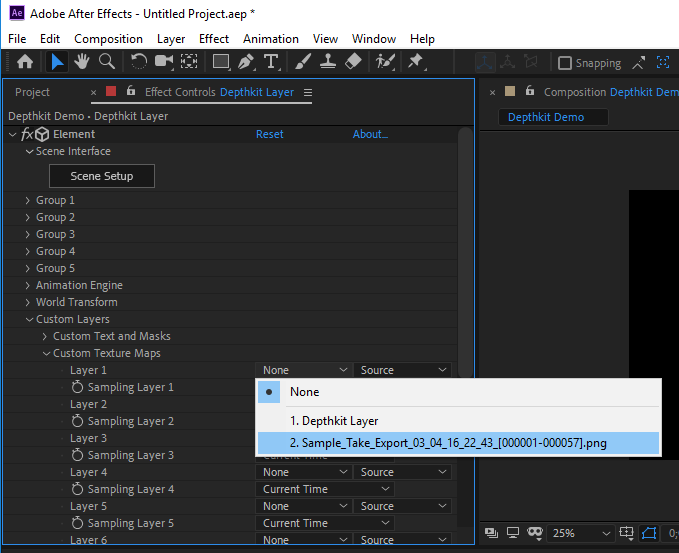
Back in the Scene Setup in the Element panel, go to Custom Layers, Custom Texture Maps. For Layer 1, select the texture layer from the drop down list.
Back in the Scene Setup in the Element panel, go to the Scene panel. Click on the Depthkit Material under the OBJ sequence. This will expose the texture settings in the Edit panel.
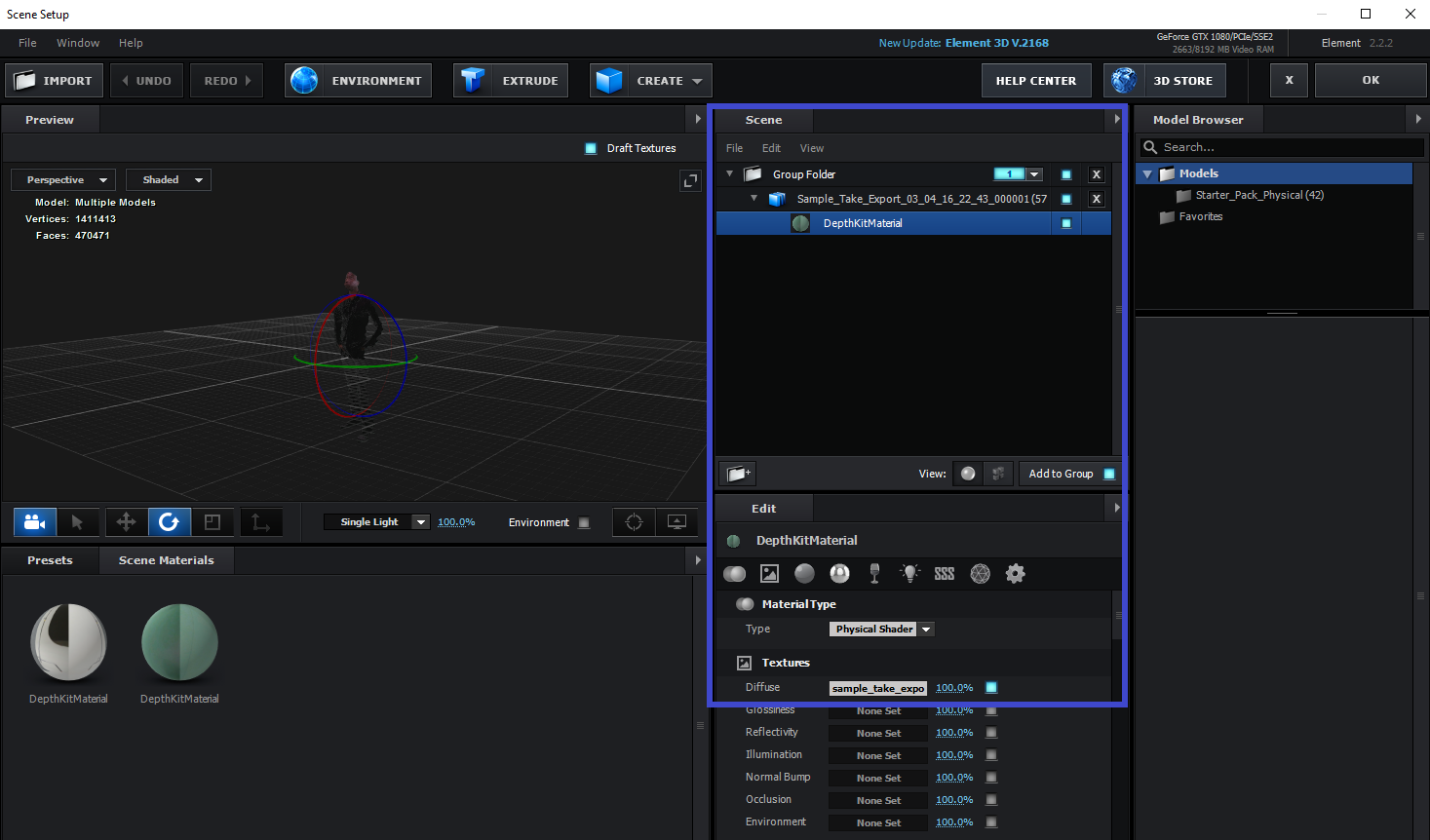
In Texture Channel, select the custom layer that you just set up with the png sequence.
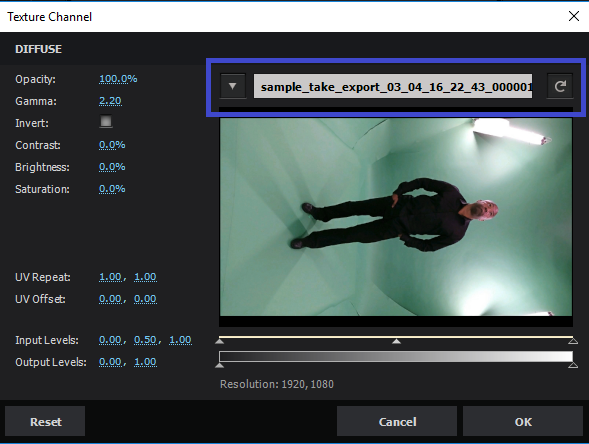
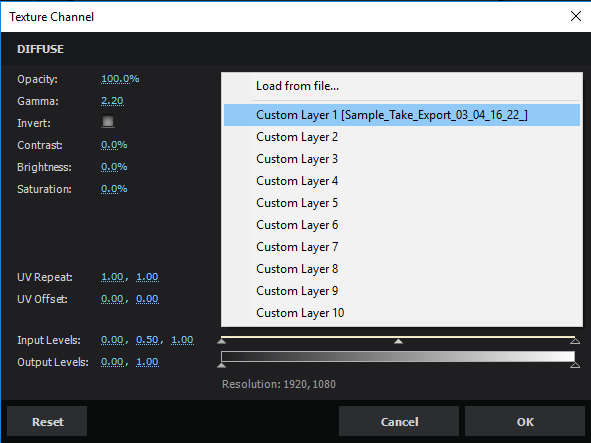
Click OK and now you are ready to use the obj sequence in your project!