
[OLD] Mesh sequence export
🚧 This is an experimental Depthkit Studio Expansion package
Contact us for access to this addon package.
Mesh Sequence export format
The Depthkit Studio Expansion Package can export mesh sequences right from Unity, as alembic files. Each export consists of one alembic file, a metadata text file, and png sequences. These png sequences are single perspective textures, with one texture sequence per sensor.
For example, if you have captured with 5 Azure Kinects, you will output five texture sequences.
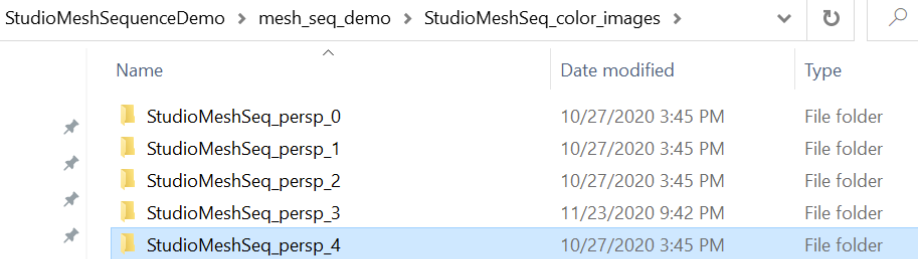
❗️ The Mesh Sequence Exporter does not export merged/blended textures.
Textures are exported as individual image sequences per sensor perspective.
What you need to get started
- An exported multi-perspective Combined Per Pixel image sequence from straight from Depthkit.
- Create a new Unity project and import your desired Depthkit Studio Expansion packages as outlined in Depthkit Studio Expansion.
- Follow the Non-realtime playback guide to get set up with your image sequence on the Unity timeline.
- Depthkit Studio Expansion Package (Experimental) - This experimental supplement to the standard Studio Expansion Package contains Mesh Sequence Export plugin. Contact support@depthkit.tv to get access.
Setting up the Mesh Sequence Exporter in Unity
- Ensure your Depthkit clip already set up as described in the Non-realtime playback guide. The Mesh Sequence Exporter must be used with the Streaming Image Sequence Player. Using it with a video player will result in dropped frames during export.
- Locate the Depthkit Studio Mesh Sequence Recorder prefab found in Depthkit.Studio.MeshSequence → Runtime → Prefabs.
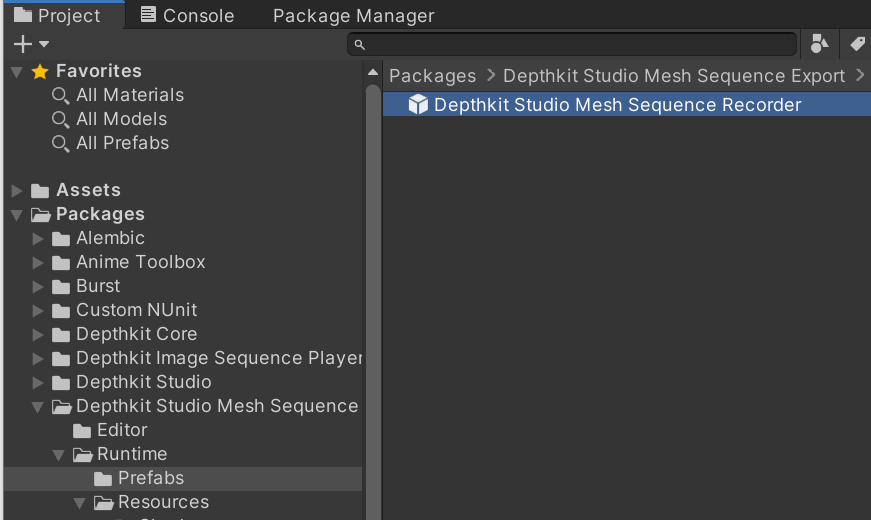
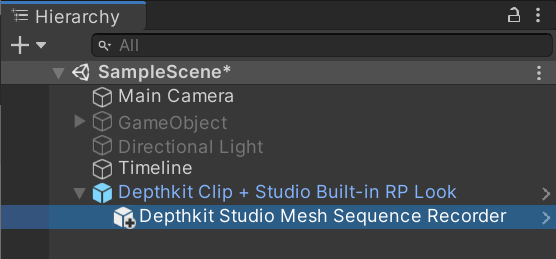
- Drag this prefab into the Hierarchy as a sub object to your Depthkit clip.
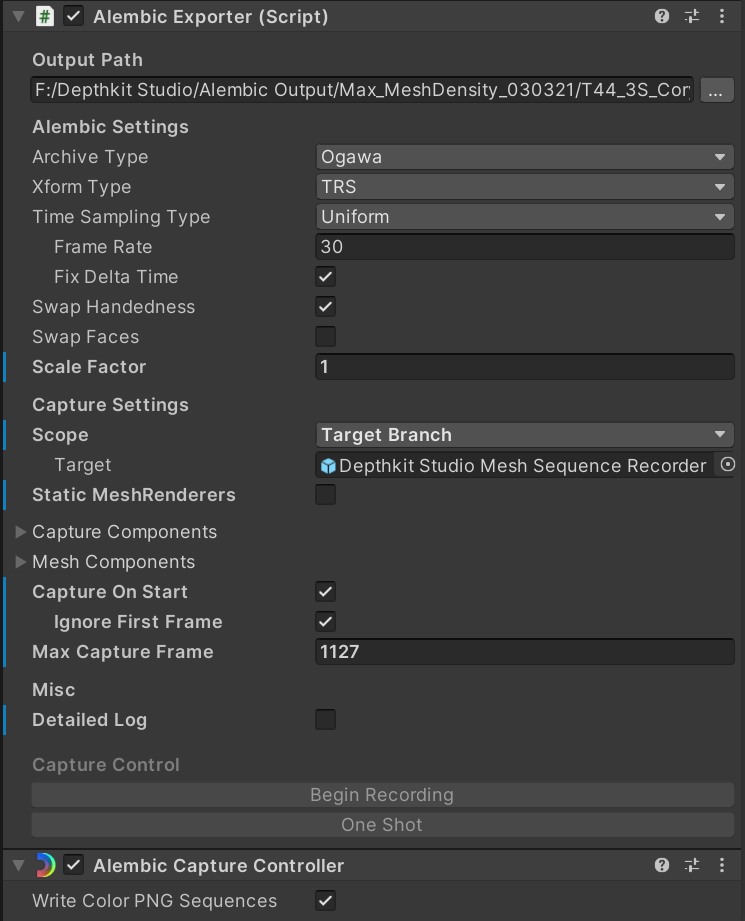
- With the Mesh Sequence Recorder selected, see the Alembic Sequence Capture Controller component in the Inspector and enable Write Color PNG Sequences. This will generate image sequences for each individual sensor perspective on export.
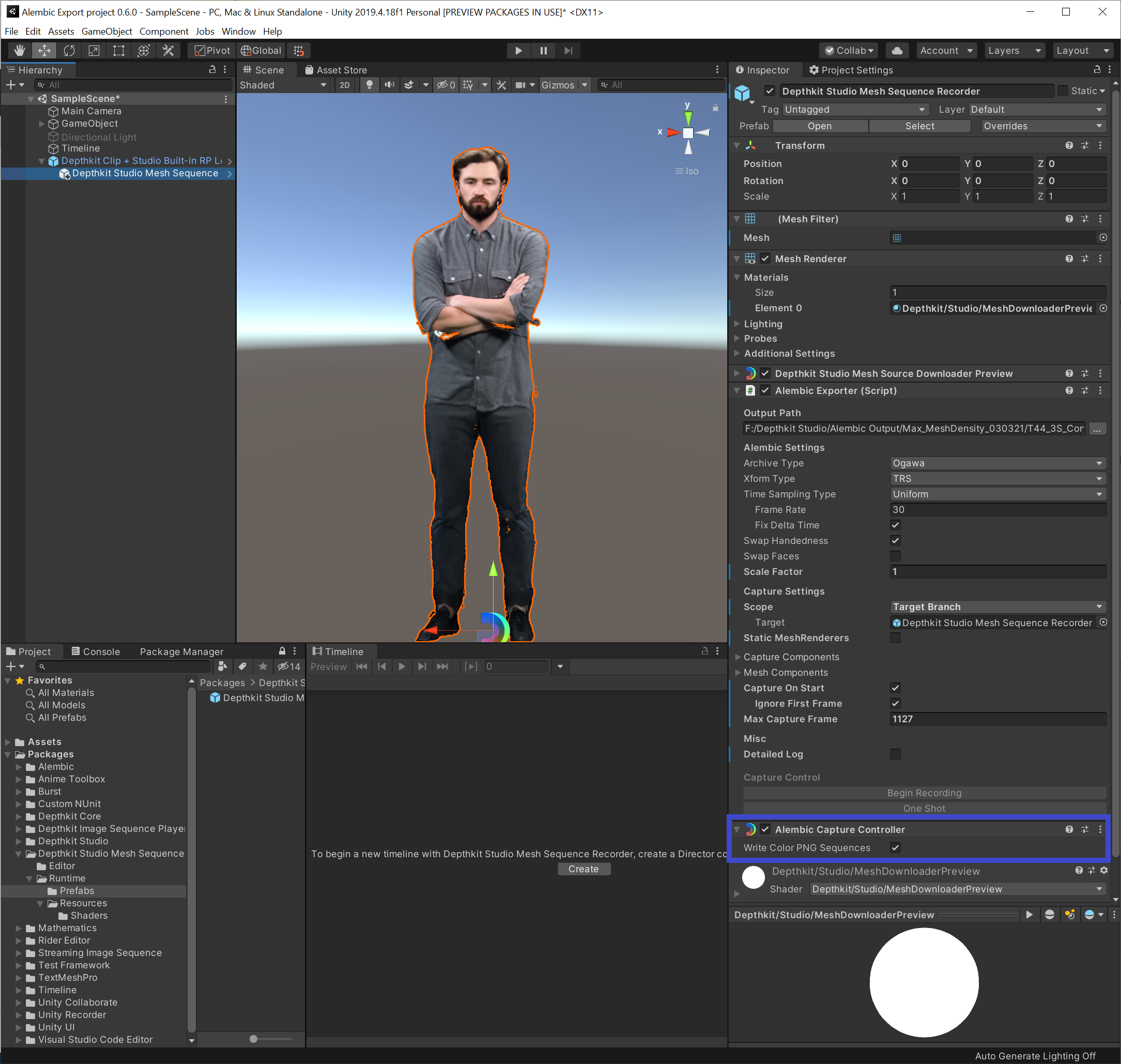
- On the Alembic Exporter component, set the following:
- Define the alembic export path. This location will be used for saving the alembic file, metadata, and PNG sequences.
- Enable Capture on Start to start capturing on playback. Enable Ignore First Frame if you want to ignore the first frame. Alternatively you can use the Begin Capture button at any time during playback.
- Ensure the FPS is 30 to match your image sequence.
- Set the max frames to match your clip if you want the capture to end automatically. You can press the Stop button on the alembic component at any time during playback.
- Hit play (if you enabled Capture on Start) and sit back as your mesh sequence exports. This may take some time if using a longer clip.